
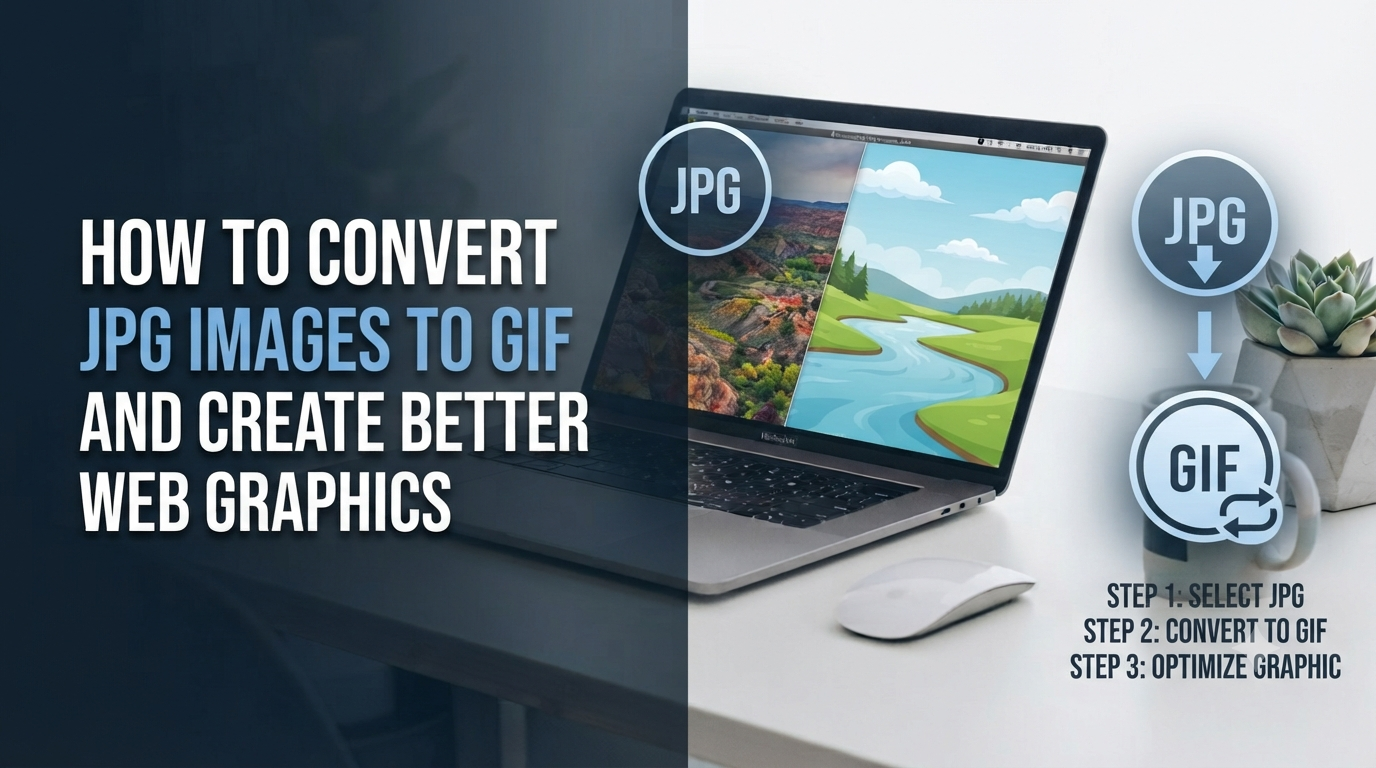
Images play an important role in websites, blogs, social media, presentations, and digital marketing. Choosing the right image format can affect quality, file size, compatibility, and how effectively a visual communicates its message. An online image conversion workflow can make it easier to prepare images for different platforms without requiring complicated software.
JPG is widely used for photographs because it handles rich colors and detailed images efficiently. GIF, on the other hand, is better known for simple graphics, short animations, icons, memes, and lightweight visual sequences. Understanding the difference between these formats can help you decide when conversion makes sense.
JPG vs GIF: What’s the Difference?
JPG is designed primarily for photographic content. It uses lossy compression to reduce file size, making it practical for photos, product images, blog visuals, and everyday online sharing.
GIF works differently. It supports animation and basic transparency but is limited to a palette of up to 256 colors. This makes GIF useful for simple visuals but less suitable for photographs containing detailed gradients and large numbers of colors.
When Should You Convert JPG to GIF?
A JPG may be converted to GIF when the destination specifically benefits from the GIF format. For example, you might need a simple animated visual, a small looping graphic, or an image format with broad compatibility.
Using a JPG to GIF converter can make a straightforward format change easier, particularly when you need to process images quickly from a browser.
However, conversion does not automatically make a photograph better. Because GIF has a limited color palette, detailed photos may lose some color information or appear grainier after conversion.
Can One JPG Become an Animated GIF?
A single JPG can be converted into a static GIF, but creating an animated GIF generally requires multiple images that become individual frames.
For example, a sequence of photographs can be arranged in order and displayed one after another. Adjusting frame timing can then create the appearance of movement.
Animated GIFs can be useful for:
- Short demonstrations
- Simple tutorials
- Visual loops
- Memes
- Social media graphics
- Website elements
- Step-by-step visual sequences
If animation is the goal, using multiple JPG images as frames provides much more flexibility than converting only one photograph.
How to Prepare JPG Images Before Conversion
Good preparation can improve the final result.
Before converting, check the dimensions of your JPG files and remove unnecessary areas. If several images will become frames in an animation, keeping them at consistent dimensions can make the final sequence look more professional.
It is also useful to start with clean, high-quality source images. Converting a blurry or heavily compressed JPG will not magically restore missing detail.
For animated projects, organizing the images in the correct order before conversion can also save time.
Why Do GIFs Sometimes Look Grainy?
One of the main reasons is GIF’s 256-color limitation.
A modern photograph may contain thousands or millions of colors. When it is converted to GIF, the available colors have to be reduced. This can produce:
- Grainy areas
- Banding in gradients
- Visible dithering
- Reduced color detail
- Pixelated-looking sections
The effect is usually more noticeable in photographs than in simple graphics with flat colors.
Why Can a GIF Be Larger Than a JPG?
It may seem strange that a GIF can sometimes have a larger file size than the original JPG, but this is possible.
JPG is highly efficient for photographic images. An animated GIF, meanwhile, has to store information for multiple frames, and its compression approach is not as efficient for photographic content.
GIF file size can be influenced by:
- Image dimensions
- Number of frames
- Color palette
- Animation duration
- Dithering
- Amount of visual detail
Reducing the dimensions and frame count can often make a significant difference.
How to Reduce GIF File Size
If your converted GIF is too large, there are several practical ways to optimize it.
Reduce Image Dimensions
Smaller dimensions generally require less data. If a GIF does not need to be displayed at a large size, reducing its width and height can help.
Remove Unnecessary Frames
An animation with many similar frames may not need every frame. Removing unnecessary frames can reduce the final file size.
Increase Frame Delay
Displaying fewer frames per second can sometimes reduce the amount of data required while still creating a smooth enough visual effect.
Reduce Unnecessary Detail
GIF works better with simple graphics than complex photographic scenes. Simplifying the visual can improve both appearance and file efficiency.
Compress the Final GIF
After conversion, an additional optimization step may help reduce the file size before uploading or sharing the animation.
Does GIF Support Transparency?
GIF supports basic transparency, but it does not provide the same smooth alpha transparency available in formats such as PNG.
This means a GIF can have transparent areas, but pixels are essentially either transparent or visible rather than supporting many levels of partial transparency.
If your design contains soft shadows, smooth transparent edges, or semi-transparent elements, PNG may be a more suitable choice.
When Should You Keep the Image as JPG?
Conversion is not always necessary.
If your image is a detailed photograph and you simply need a high-quality static image, JPG may be the better option. GIF is generally more appropriate when you specifically need simple animation, limited-color graphics, or other characteristics associated with the format.
For photographs containing smooth gradients and complex colors, keeping the original JPG can help preserve visual detail.
JPG to GIF for Websites and Digital Content
GIFs can be useful on websites when used carefully. Small animations can demonstrate a process, highlight an interface feature, or add movement to an otherwise static page.
However, large animated GIFs can increase page weight. If an animation contains many high-resolution photographic frames, alternatives such as video or modern animated image formats may provide better efficiency.
The goal should be to use GIF where its strengths actually matter rather than converting every image simply because the format supports animation.
Tips for Better JPG-to-GIF Results
For more reliable results, keep these practices in mind:
- Start with a high-quality JPG.
- Use images with relatively simple colors when possible.
- Keep animation dimensions reasonable.
- Use consistent dimensions for multiple frames.
- Avoid unnecessary frames.
- Check the final color quality.
- Compress large GIFs before publishing.
- Keep the original JPG separately.
- Use JPG instead when a static photographic image is the priority.
A thoughtful workflow can help you avoid unnecessary quality loss and excessive file sizes.
Choosing Between JPG, GIF, PNG, and WebP
Each format has a different role.
JPG is generally useful for photographs and detailed static images.
GIF is useful for simple animations, icons, memes, and limited-color graphics.
PNG is useful for graphics requiring lossless compression and transparency.
WebP can be useful for modern web workflows where efficient image delivery is important.
The best choice depends on the image and its destination rather than on one format being universally superior.
Final Thoughts
Converting JPG images to GIF can be useful when you need simple animations, lightweight visual sequences, icons, or other GIF-friendly graphics. However, GIF’s limited color palette means it is not ideal for every photograph.
Before converting, consider the purpose of the image, the required dimensions, whether animation is necessary, and the expected file size. Starting with a clean source image and optimizing the final result can help you achieve a better balance between appearance and performance.
For a deeper walkthrough of conversion methods, animation workflows, quality problems, and GIF optimization, a JPG to GIF conversion guide can provide additional practical guidance.
Frequently Asked Questions
1. Can I convert a JPG to GIF for free?
Yes. Browser-based image conversion tools can convert JPG files to GIF without requiring traditional desktop software. The exact features available depend on the converter.
2. Does converting JPG to GIF reduce image quality?
It can. GIF supports a maximum of 256 colors, so detailed photographs and smooth gradients may lose some color information during conversion.
3. Can I create an animated GIF from multiple JPG images?
Yes, if the tool or workflow supports combining multiple images into one frame sequence. You can arrange the JPG images in order and control the timing between frames.
4. Why is my GIF larger than the original JPG?
An animated GIF may contain multiple frames, and GIF compression is less efficient than JPG for photographic content. Dimensions, frame count, colors, and animation duration can all affect its size.
5. Can a JPG become a transparent GIF automatically?
No. JPG does not contain transparency information, so simply converting it to GIF will not automatically remove the background. GIF supports basic transparency, but background removal requires a separate editing process.